killing floor 2 not launching steam Causes and Fixes for Steam Launch Problems
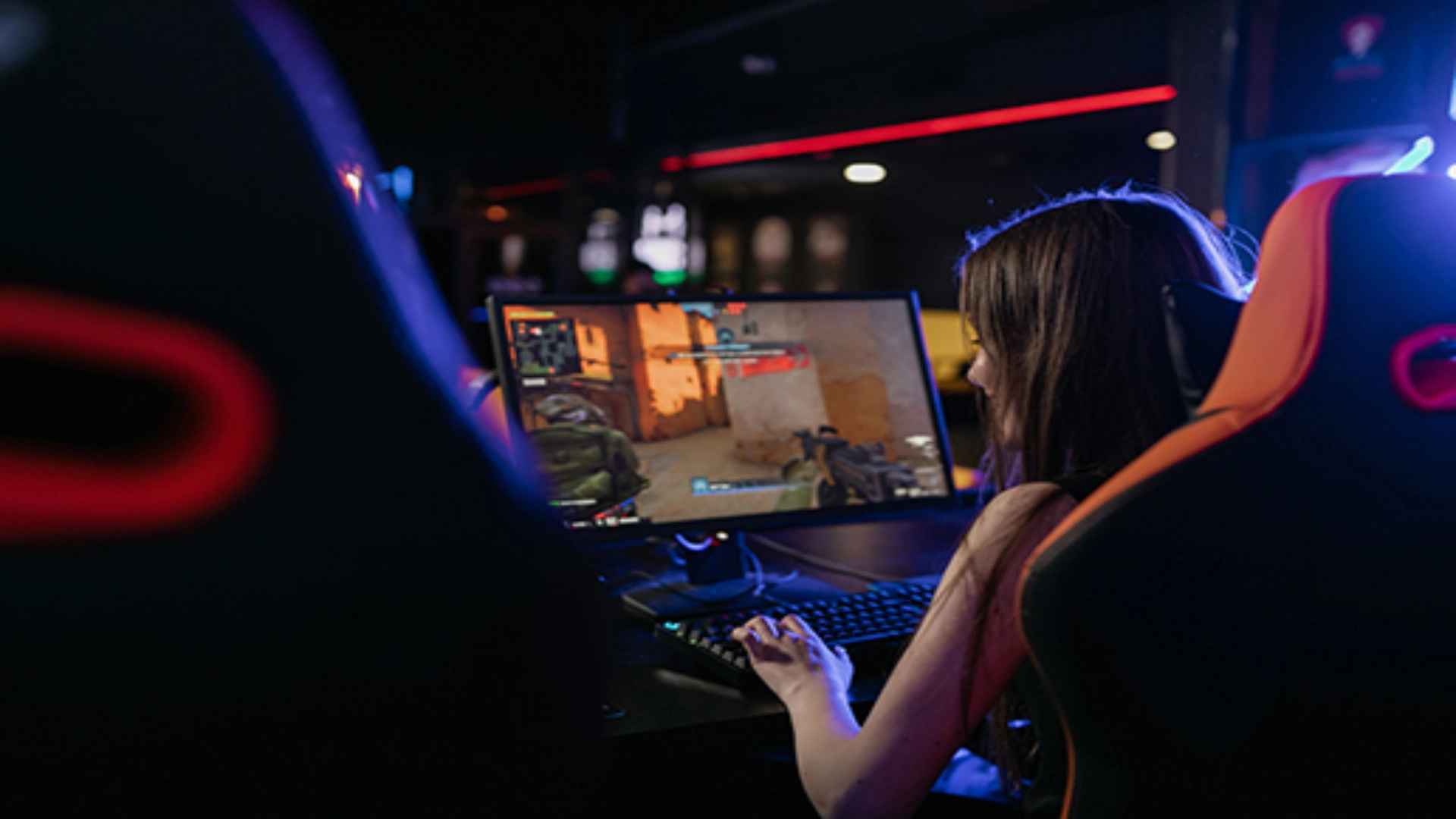
Experiencing sudden disruptions when trying to load your favorite cooperative shooter can quickly ruin a planned gaming session. Many players report that Killing Floor 2 occasionally refuses to start properly through the Steam client, leaving them stuck on an unresponsive screen or returning straight to the desktop. Understanding the underlying triggers behind these technical hiccups is the first step toward getting back into the action.
Corrupted Game Files and Cache Solutions
One of the most frequent causes for startup failures stems from missing or broken installation data within your local directory. Over time, sudden system shutdowns or interrupted updates can compromise critical software components required for initialization. To resolve this, you can utilize the built-in verification tool provided directly by the desktop platform.
Right-click on the title in your digital library, select properties, and navigate to the installed files section. From there, choosing to verify integrity of game files will automatically cross-reference your local data with official server records. Any detected anomalies or broken elements will be re-downloaded to restore a healthy installation layout.
Outdated Graphics Drivers and System Conflicts
Modern video games rely heavily on updated display software to communicate effectively with your computer hardware. An outdated or improperly installed graphics driver frequently triggers a black screen or an immediate crash during the initial loading phase. Keeping your GPU software current ensures compatibility with the game engine adjustments.
You should visit the official website of your hardware manufacturer to download the latest stable release for your specific card. Performing a clean installation removes older configurations that might cause runtime conflicts. Additionally, temporarily disabling intensive background overlays can prevent third-party tools from disrupting the initialization sequence.
Administrative Privileges and Compatibility Mode
Strict system permissions can occasionally prevent the game from accessing vital local directories during startup. When Windows blocks specific file operations, the application may abruptly terminate without displaying an error message. Granting higher administrative access often bypasses these environmental roadblocks smoothly.
To adjust these settings, browse your local directory to locate the primary executable file for the game. Right-click the application icon, open its properties, and check the option to run this program as an administrator under the compatibility tab. This ensures the software possesses the necessary permissions to allocate memory and utilize system resources.
Network Settings and Server Synchronization
Because this title features robust multiplayer integration, it requires a stable connection to external matchmaking networks during the boot process. Sudden authentication failures or local firewall restrictions can cause the client to hang indefinitely. Ensuring your security software permits the application to communicate freely eliminates network-based launch blocks.
You can add an explicit exception for the executable file within your active Windows Defender or third-party firewall configurations. Resetting your local router or switching to a wired connection can also stabilize the initial server handshake. If problems persist, clearing temporary download cache files within your client settings can refresh your connectivity baseline.